The Theatre module
Every screen in the building follows the show: foyer, hall doors, backstage and surtitles.
Module, on any plan
The Theatre module ties your screens to the performance. You tell it which show plays in which hall and when; during the evening the stage manager moves the performance through its steps and every screen of the hall changes with it.
Set it up
Open Apps → Theatre.
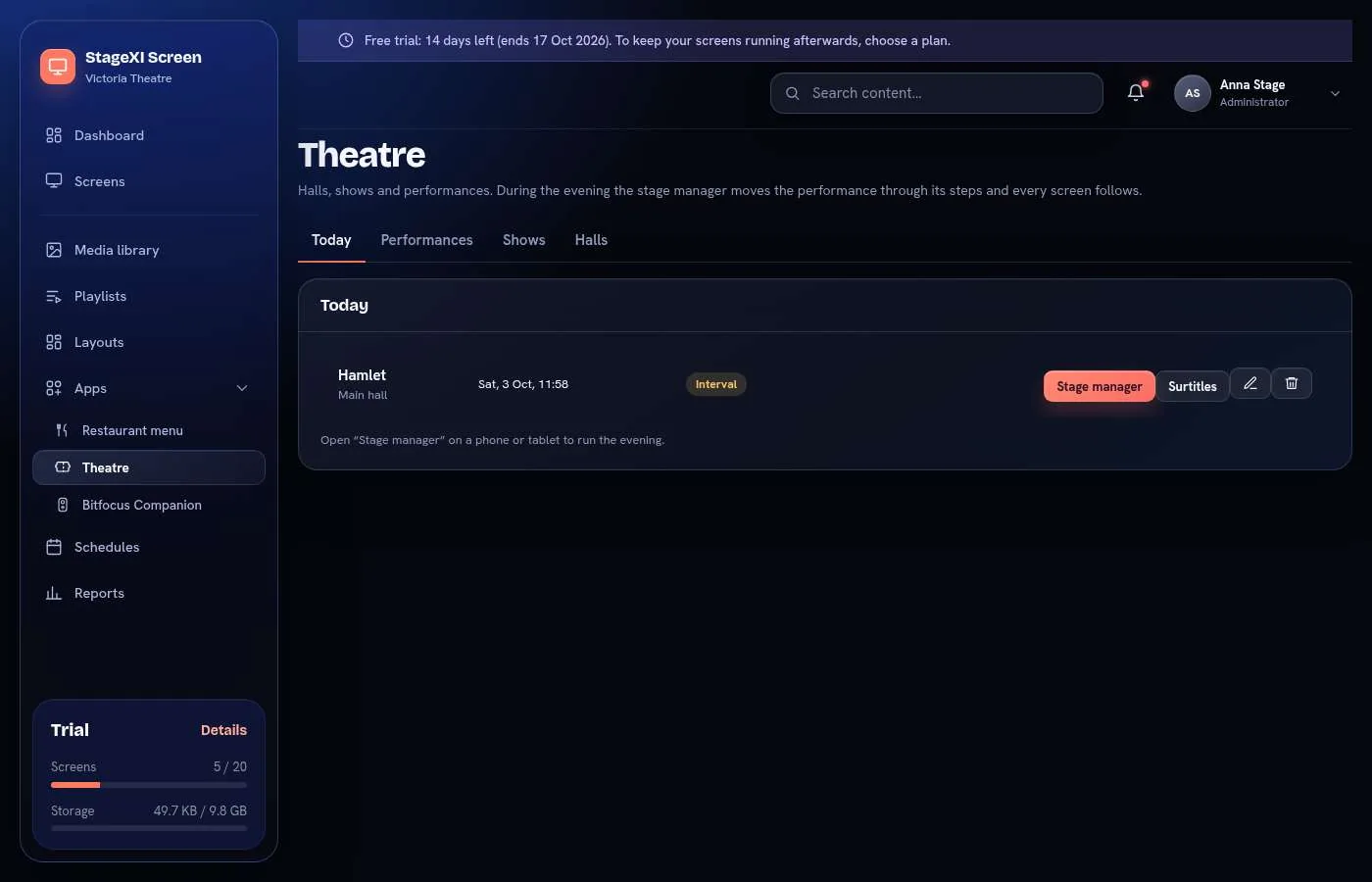
- Halls: add each hall. A screen is set to a hall and follows that hall's performance.
- Shows: add each show with its title, the line under the title (author, director), its length, the length of the interval (0 = no interval) and a poster from your media library.
- Performances: a show in a hall at a date and time, with how many minutes before the start the doors open.
Put it on screens
In a playlist or a layout, add the Theatre widget (under Modules), choose the hall and what this screen shows:
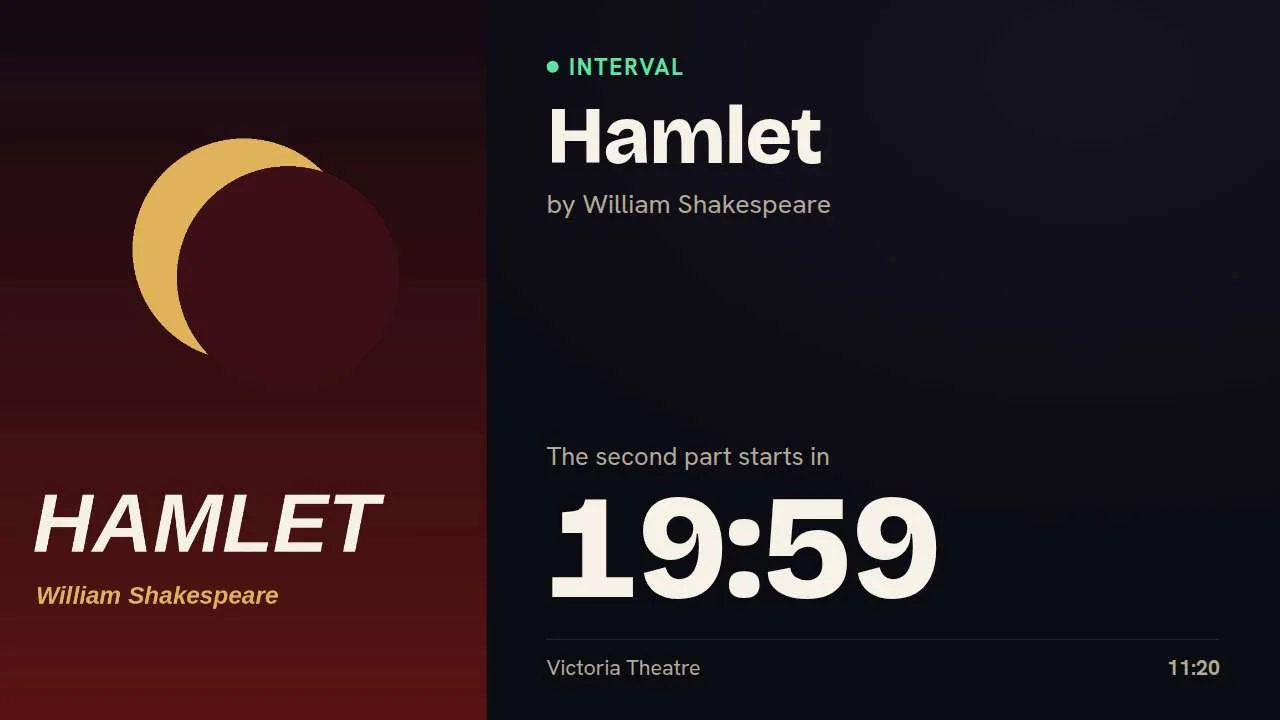
- Foyer: for the audience. Before the show: the title, the poster and the starting time. Then "Doors open" with the time left, "Please take your seats", "Performance in progress", the interval with its countdown, and a goodbye at the end.
- Hall door: "Please come in", "Performance in progress. Please do not enter.", the interval.
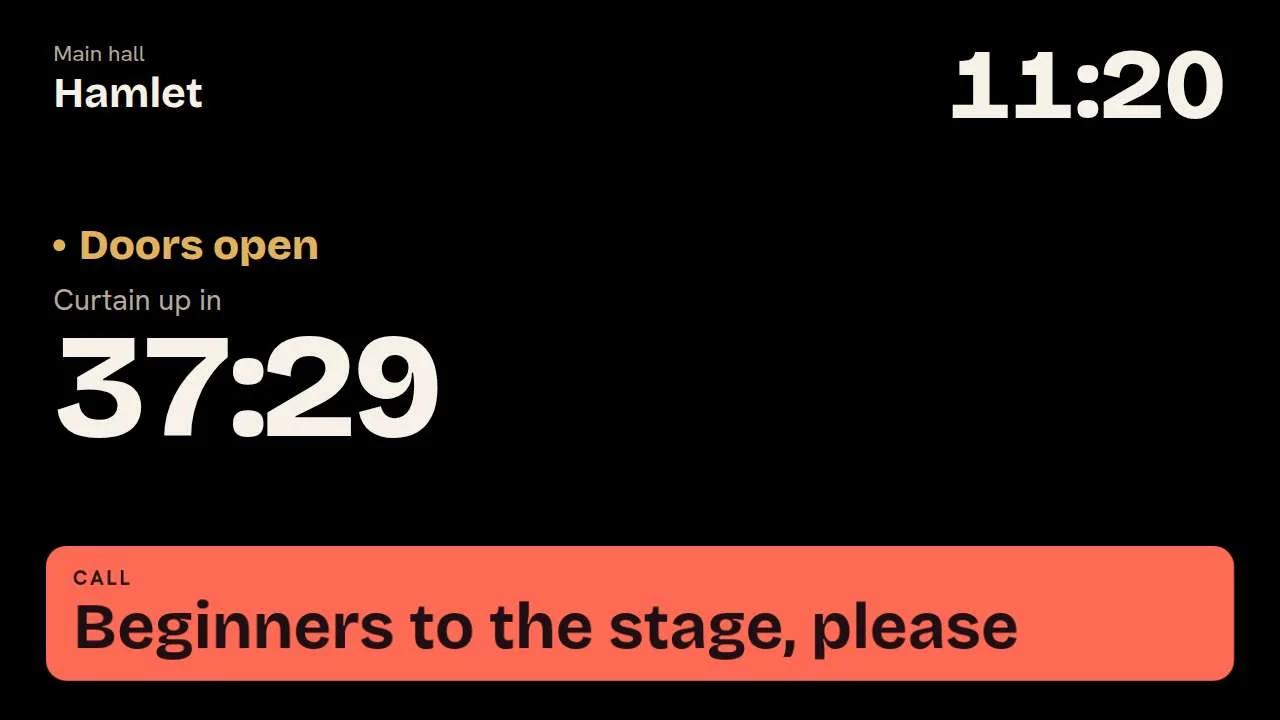
- Backstage: for the company. The clock, the countdown to curtain (in red once it is late), the running time, and the stage manager's calls.
- Programme: the next performances with their dates and "Sold out".
- Surtitles: only the line the operator shows, on a black screen.
The texts the audience sees are shown in the language of your screens; you can replace any of them with your own under Texts on the screen.
The evening: the stage manager's page
On the Today tab choose Stage manager next to the performance. The page is made for a phone or a tablet: use Open on the phone to get it there.
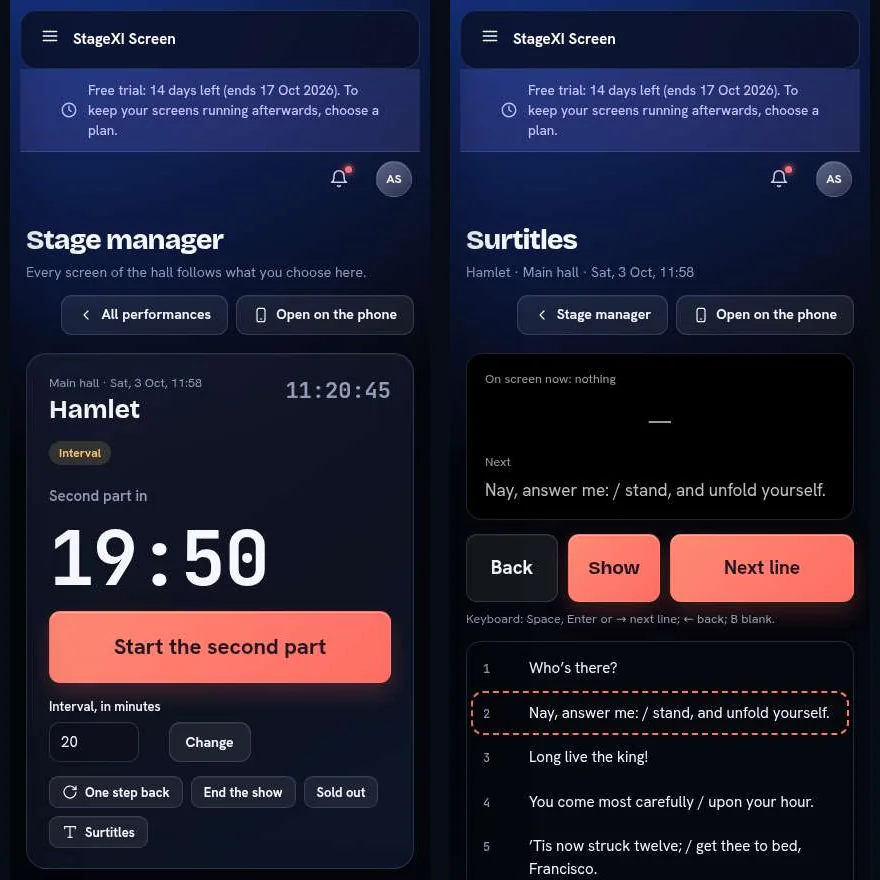
One large button moves the evening to its next step:
- Open the doors
- Five minutes
- Start the show
- Start the interval (when the show has one)
- Start the second part
- End the show
The page shows the time left until the curtain, the running time or the time left of the interval. One step back undoes a tap made by mistake. During the interval you can make it longer or shorter. Sold out marks the performance on the foyer and programme screens.
Calls
Under Call to the backstage screens, tap a ready-made call ("Half-hour call", "Beginners to the stage, please"…) or write your own and choose how long it stays. It appears at once, in large, on the backstage screens of that hall. A new call replaces the one before.
Surtitles
On the Shows tab choose Surtitles next to a show. Paste the text, one line of surtitle on each row, or load a .txt or .srt file (from an .srt file only the text is kept). Use | inside a line to break it in two rows on the screen.
During the performance open Surtitles next to it (or from the stage manager's page):
- Next line shows the next line; Back returns to the one before; Blank clears the screen and Show brings the line back.
- Tap any line in the list to jump to it.
- With a keyboard: Space, Enter or → for the next line, ← to go back, B for blank.
The surtitle screen shows text only while the performance runs (first or second part) and is black the rest of the time.
Who can do what
- People who may set up apps add halls, shows, performances and surtitles.
- People with day-to-day use of apps run the evening: the stage manager's page, calls, sold out and the surtitle operator's page.
See Users, roles and permissions.
Good to know
- One performance at a time runs in a hall: starting one closes another left open there.
- The countdowns run on the screens themselves, so they stay right between updates.
- Changes reach the screens through the internet. A screen that loses its connection keeps showing the last step it received until it reconnects, so use a reliable network in the building.
Try the whole evening once before the first real performance: add a test performance, put the widget on the screens and go through the steps from your phone.
Still need help?
Write to us and we will answer within one working day.