Bitfocus Companion
Control StageXI screens and playlists from Companion or a Stream Deck.
Enterprise
Before you start
Install the StageXI Screen module as a local developer module in Bitfocus Companion. In the StageXI panel, open Apps → Show Control → Bitfocus Companion.
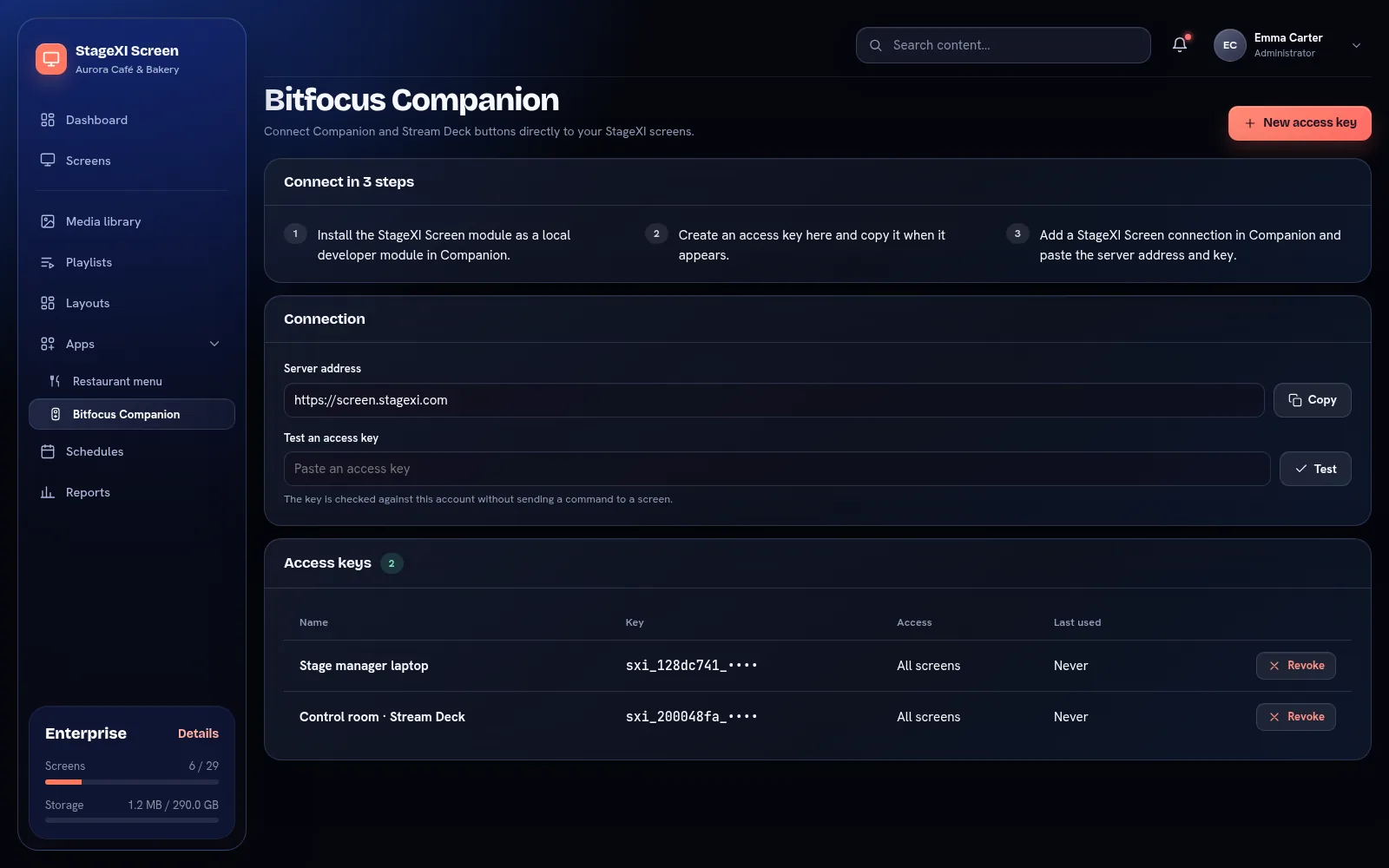
Connect Companion
- Select New access key and give the connection a clear name.
- Optionally limit the key to specific screens or screen groups. Leave all choices unticked to allow the whole account.
- Copy the key immediately. It is shown only once and StageXI stores only its hash.
- In Companion, add a StageXI Screen connection. Paste the Server address and the access key from the panel.
Use Test in the StageXI panel to check a newly created key without sending a command to a screen.
What you can control
- Put a playlist over the normal schedule on one screen or an entire group.
- Return a screen or group to its normal schedule.
- Reload or identify a screen, or move to the next or previous playlist item.
- Turn a screen on or off.
- Show and clear an emergency message over content, layouts, video walls and apps.
Companion receives screen state through a live connection and reconnects automatically. A playlist override is kept by the server, survives restarts and is applied when an offline screen returns.
Security
Create a separate key for every Companion installation. Revoke a key immediately when a control computer is retired or the key may have been copied. A revoked key cannot use the API again.
The access key controls screens. Store it like a password and never paste it into support messages or screenshots.
Still need help?
Write to us and we will answer within one working day.